Blog
Archive | 2019

Collaborative Screen Sharing Now Available

We are excited to announce that collaborative screen sharing is now available for the Screenleap for Mac and Screenleap for Windows apps. The collaborative screen sharing feature allows you to share control of your computer with your viewers so that you can seamlessly collaborate together online.

You and the viewer you are collaborating with will each have your own mouse cursor to control. You will both be able to interact with your computer using your respective keyboards and mice at the same time—it’s even better than having the other person sitting next to you at your computer since you don’t have to share your keyboard and mouse!

How It Works

To share control of your screen with one of your viewers, you will need to have at least one person viewing your screen share. Once you have people viewing your screen, click on the mouse icon on the Screenleap console, select a viewer, and then select Share mouse/keyboard control.
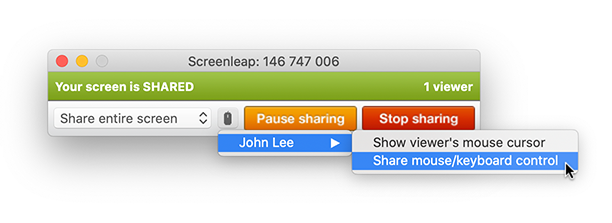
Your viewer will now be able to control your computer from their browser—they do not need to download or install any software. You and your viewer will have your own mouse cursor to control (your viewer’s mouse cursor will be green and will include the viewer’s name). Your viewer will be able to point things out on your screen using his/her mouse, scroll through documents using his/her scroll wheel, and interact with your screen by clicking with his/her mouse and typing on his/her keyboard.
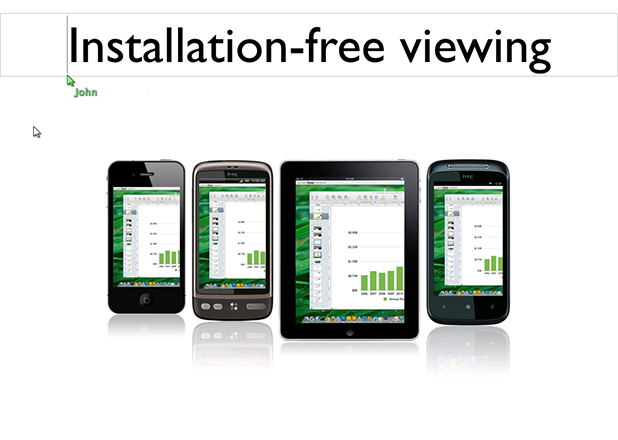
You can switch the viewer you are collaborating with by clicking on the mouse icon and selecting a new viewer. You can disable control sharing by clicking the mouse icon again and selecting Disable control sharing.

Permissions

If you are using a Mac computer, you will need to grant the Accessibility permission to the Screenleap app before you will be able to share control with your viewers. To grant the permission:

  1. Open your System Preferences.
  2. Click on Security & Privacy.
  3. Click on Accessibility.
  4. Check the box for the Screenleap app (you may need to click the lock icon and enter your password to allow for checking the boxes).

Limitations

The viewer sharing control of your computer will need to make sure the viewer page is the active window and the active tab. If another window is in front of the viewer window, then your viewer’s actions will not be passed to your computer.

Availability

Collaborative screen sharing will take your online collaboration to the next level by allowing you to interact as effectively online as if you were in the same room together. It is available to all users with a paid plan. Please contact us at support@screenleap.com if you would like a free trial to test out the feature.

Comments { 0 }

New Features: Viewer Mouse and Viewer Registration

We are excited to announce the general availability of two new features: viewer mouse and viewer registration.

Viewer mouse allows you, as the presenter, to see the mouse cursor of one of your viewers so that your viewer can interact with you and point out things on your screen. Viewer registration allows you to capture information about your viewers before allowing them to view your screen.

Viewer Mouse

Viewer mouse allows you to see the mouse cursor of one of your viewers on your screen. This will allow your viewers to interact with you by giving them the ability to point out things on your screen.

When you give one of your viewers permission to show his/her mouse cursor, you will be able to see his/her mouse cursor on your screen. The selected viewer’s name will be shown underneath his/her mouse cursor so that you will know whose cursor is being shown.

viewer mouse cursor

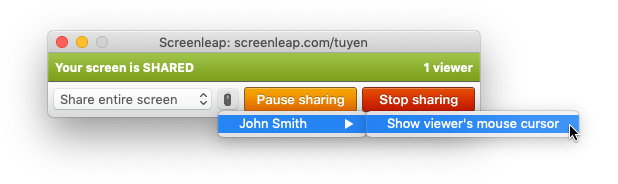
To enable viewer mouse, click the mouse icon on the Screenleap console. If you have viewers, you’ll be able to select a viewer and then select the Show viewer’s mouse cursor option.

viewer mouse: select viewer

You can switch to show the mouse cursor of another viewer or disable viewer mouse entirely by clicking on the mouse icon again and selecting either a new viewer or Disable viewer mouse respectively.

Viewer mouse is not yet available in our API, but we hope to make it available in the next few weeks.

Viewer Registration

The viewer registration features allow you to capture information about your viewers before they are allowed to view your screen share. This is especially useful if you are using Screenleap for marketing and sales webinars as you will be able to export the viewer registration information to your CRM after your presentation so you can follow up with them.

To enable viewer registration, sign into the Screenleap website select, select Settings & Preferences from the Account menu, and then select what information your viewers are require to provide. You can require your viewers to provide the following information:

  • Name
  • Name and email address
  • Name and phone number
  • Name, email address, and phone number
  • Name, company, and email address
  • Name, company, and phone number
  • Name, company, email address, and phone number

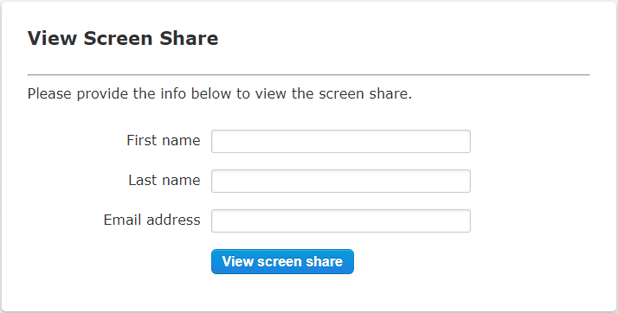
When your viewers go to view your screen share, they will be prompted for the information you specified as being required before they are allowed to view your screen.

viewer registation

After your screen share ends, you can view the list of viewers and the collected registration information from the Reports page. You will also be able to export the viewer registration list as a CSV file for import into your CRM.

Coming Soon

Viewer mouse is the first step in our transition from Screenleap being a screen-sharing platform to a collaboration platform. In the coming weeks, we will be releasing support for remote control, which will allow you to give a viewer control of your computer to allow for full collaboration. Remote control will allow your viewers to assist you with doing something on your computer and to interact with you as if they were right next to you—all without requiring your viewers to install any software.

Comments { 0 }