Blog
Archive | May, 2015

Plugin Support Disabled In Latest Version Of Google Chrome

To allow you to share from as many computers as possible, Screenleap offers you multiple ways of sharing your screen. We offer a Windows app, a Mac app, a Java applet, and a browser extension. Sharing your screen using the Chrome browser, however, has become more limited starting with version 42 of Chrome as Google has decided to disable support for the NPAPI plugin that our Java applet depends on. As a result of this change, you will no longer be able to share your screen using the Java applet if you are using the Chrome browser.

Work-Around

To work around this issue, we have switched all Java applet users over to the Screenleap for Windows and Screenleap for Mac apps. As an alternative, you can also use our Screenleap browser extension, which now supports full-screen sharing. If you using Firefox or Internet Explorer, you can switch back to using the Java applet by doing the following:

  1. After signing in to the Screenleap site, move your cursor over the “Account” link on the top-right corner of the page and click on the “Settings & Preferences” link.
  2. Select “Java applet” for the “Share your screen using” option.
  3. Save your settings and then start a new screen share.

Re-Enabling the Java NPAPI Plugin

If you are having problems getting the Screenleap for Windows app working for any reason, you can temporarily re-enable support for the Java applet plugin by first following the steps above to switch back to using the Java applet and then doing the following:

  1. Go to: chrome://flags/#enable-npapi
  2. Click “Enable” for “Enable NPAPI” option.
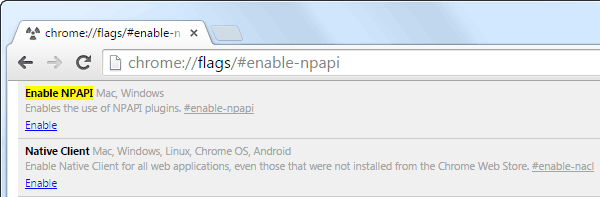
enable_npapi

Please be aware that this option will only work for the next few months as Google plans to completely remove support for all plugins (including the Java applet plugin) in September.

Please contact us if you need any assistance with using the alternative presenter apps or re-enabling the Java applet plugin temporarily.
Comments { 0 }

Simplify Sharing With Gmail Integration For Screenleap Browser Extension

We would like to share with you some recent changes that we have made to our browser extensions:

  1. We have merged the functionality in the Screenleap for Gmail browser extension into the Screenleap browser extension.
  2. Java is no longer required to share your screen with the new Gmail integration. All you need is the browser extension.

All-In-One Extension

You no longer need to install a separate browser extension to integrate Screenleap with Gmail. It has now been added to the Screenleap browser extension. We decided to merge the two extensions together to reduce the confusion caused by having multiple browsers extensions and to make it easier to enhance the extension in the future. The merged Screenleap extension will be the only extension that we support going forward. Please uninstall the Screenleap for Gmail extension if it’s installed and install the merged Screenleap extension.

Java No Longer Required

The Screenleap for Gmail extension required that Java be installed in order to share your screen. This requirement created a hassle if you did not have Java installed as you would have to download Java, install it, and restart your browser before you were able to start sharing your screen. With the new Gmail integration, all you need is the browser extension.

How To Use

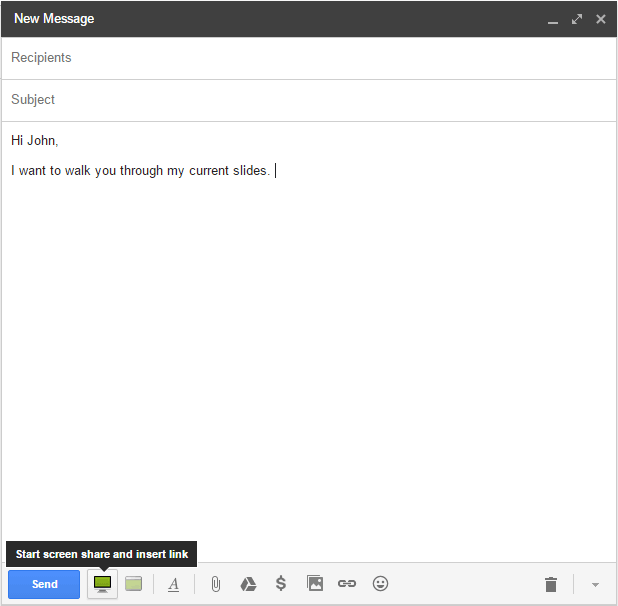
Install the Screenleap extension and then refresh the Gmail tab. Once installed, two new icons will appear in the bottom of your Gmail compose window. To start a new share from Gmail, simply click on either the screen or browser icon. The screen icon is used to initiate sharing of your entire screen. The browser icon is used to initiate sharing of just your browser window.

screenleap_gmail_integrationOnce your screen is shared, the share link will automatically be inserted into your email message. You can then share the view link with your viewers by emailing them directly from Gmail.

Future Integrations

We will be integrating the Screenleap extension with other tools that you frequently use. Please let us know what integrations you would like to see!

Comments { 0 }